Remove Person from Photo

Upload a photo, name the person to remove, and download a clean background.

No photo yet
94/500

3 free edits today. No sign-up, no watermark.

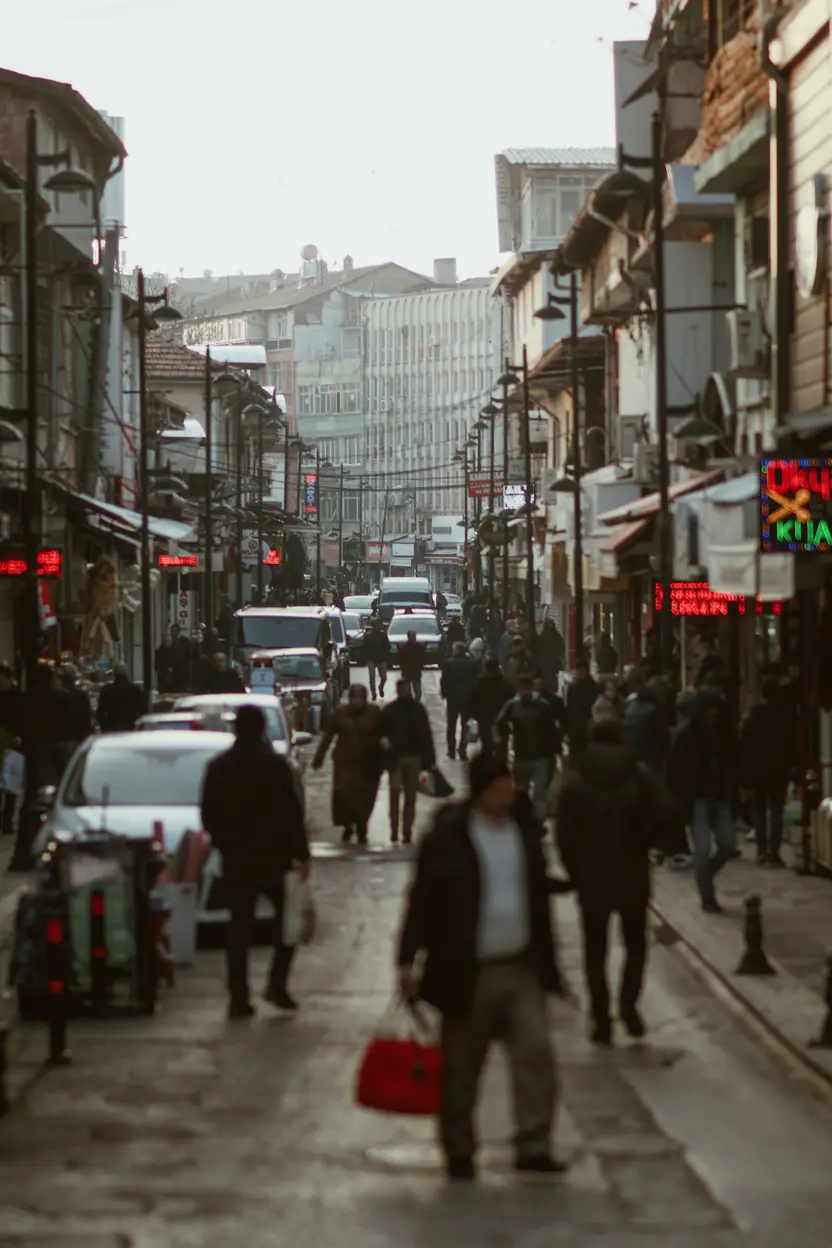
A city street shown before and after one pedestrian is removed. After
A city street shown before and after one pedestrian is removed. Before
BeforeAfter
Try a sample

AI Person Remover Examples

In a remove person from photo edit, one passerby is cleared while the road and nearby buildings remain in view.
BeforeAfter

One passerby removed from a city street

In a remove person from photo edit, one passerby is cleared while the road and nearby buildings remain in view.

View prompt

Remove the person in the center from the photo and fill the area so it matches the background.
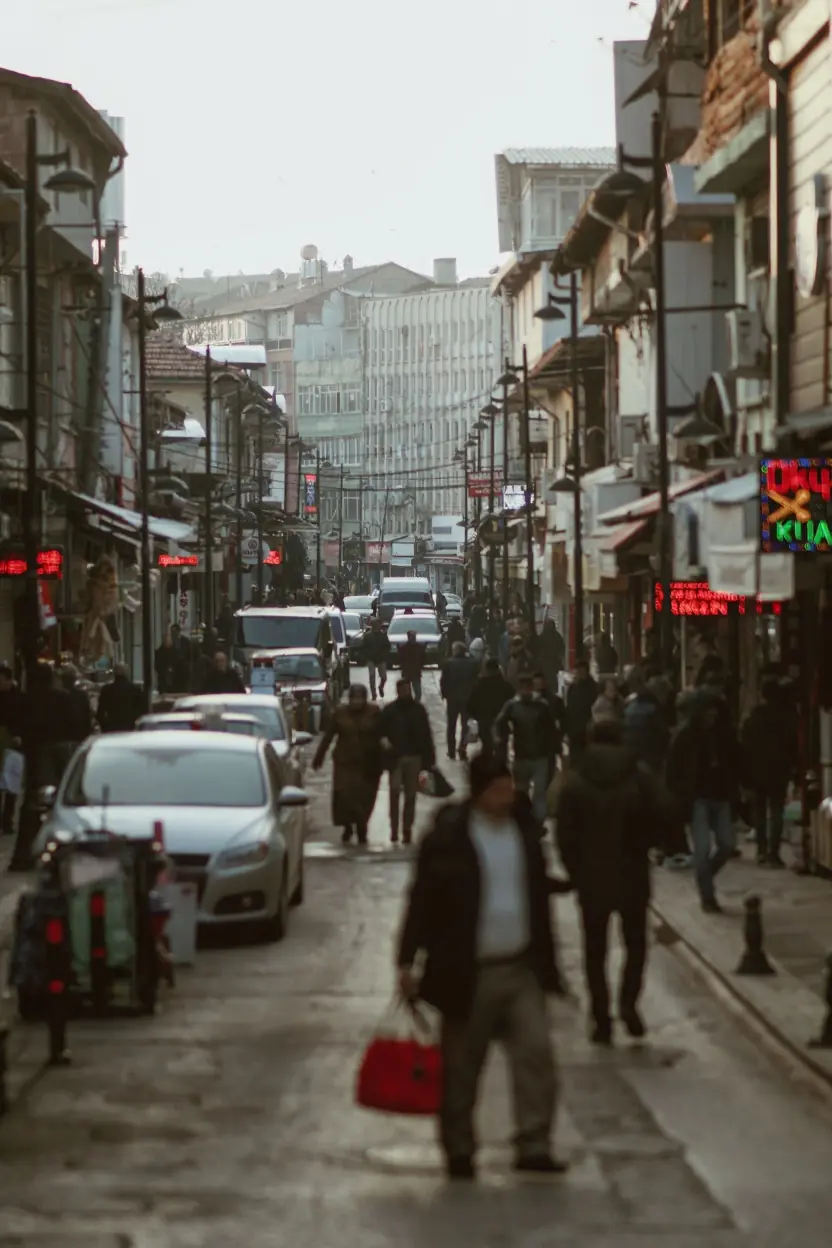
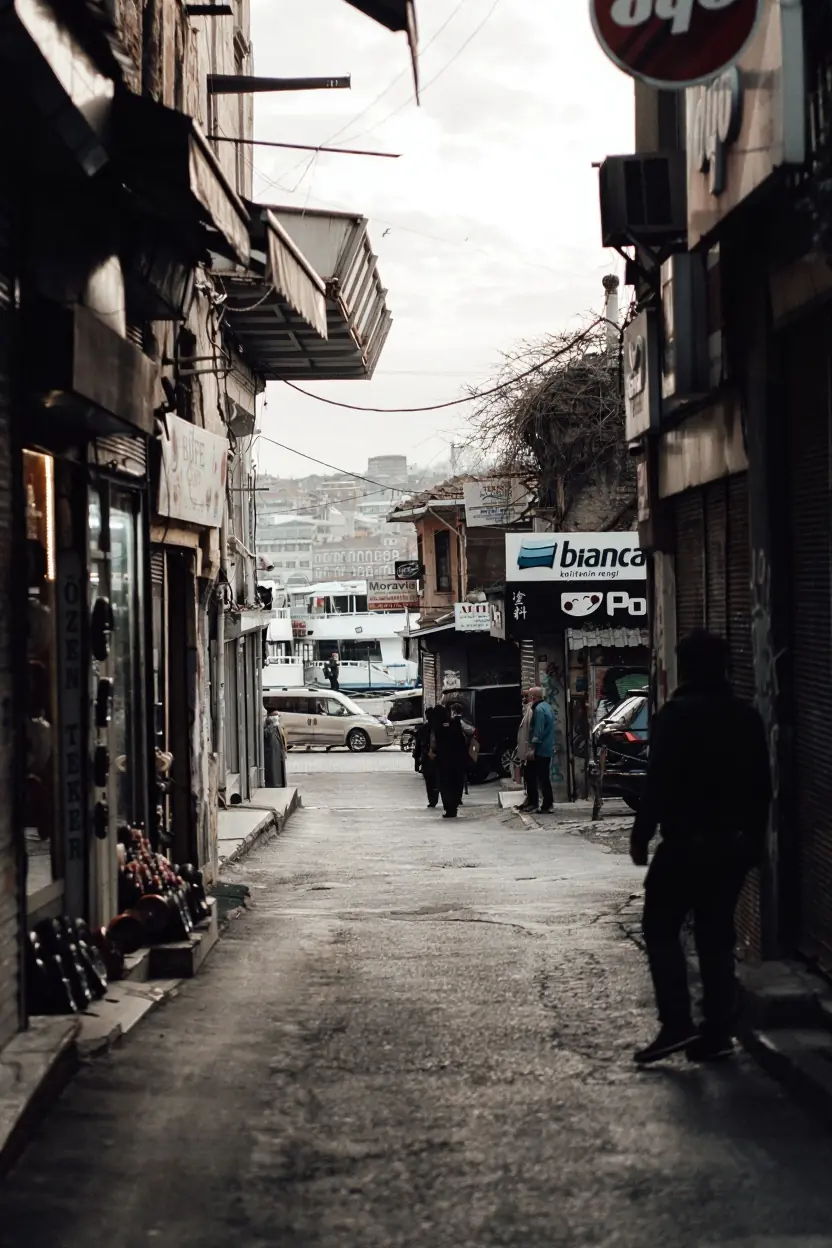
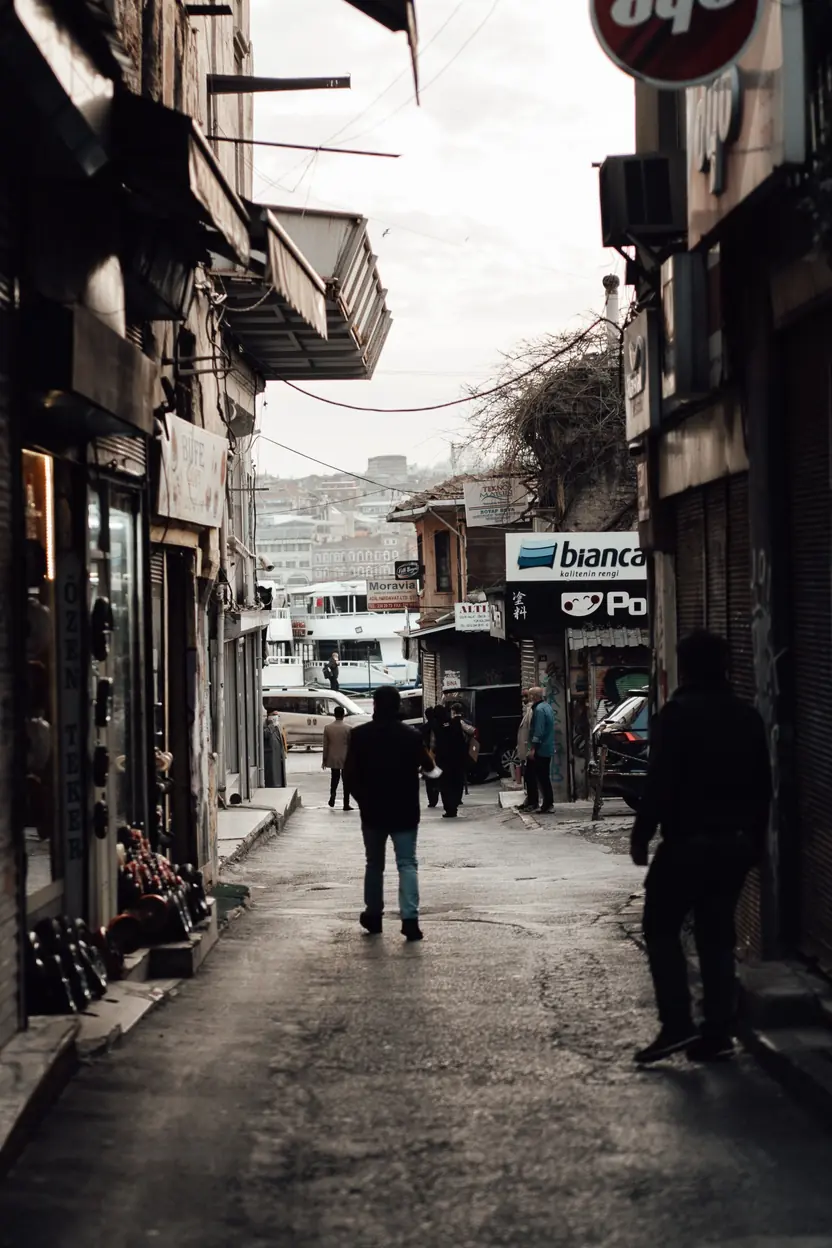
The person on the left is cleared from the foreground of a busy street.
BeforeAfter

A street scene with one person removed

The person on the left is cleared from the foreground of a busy street.

View prompt

Remove the person on the left from the photo and fill the area so it matches the background.

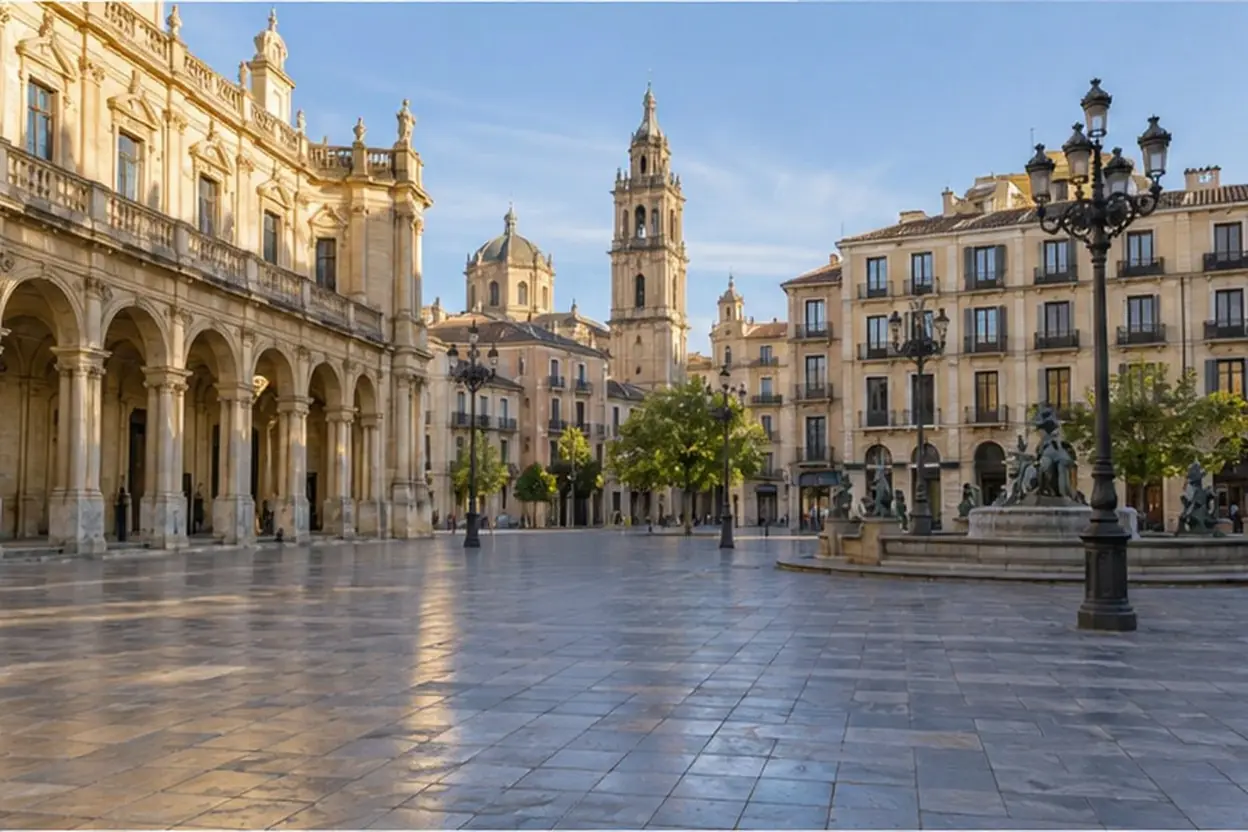
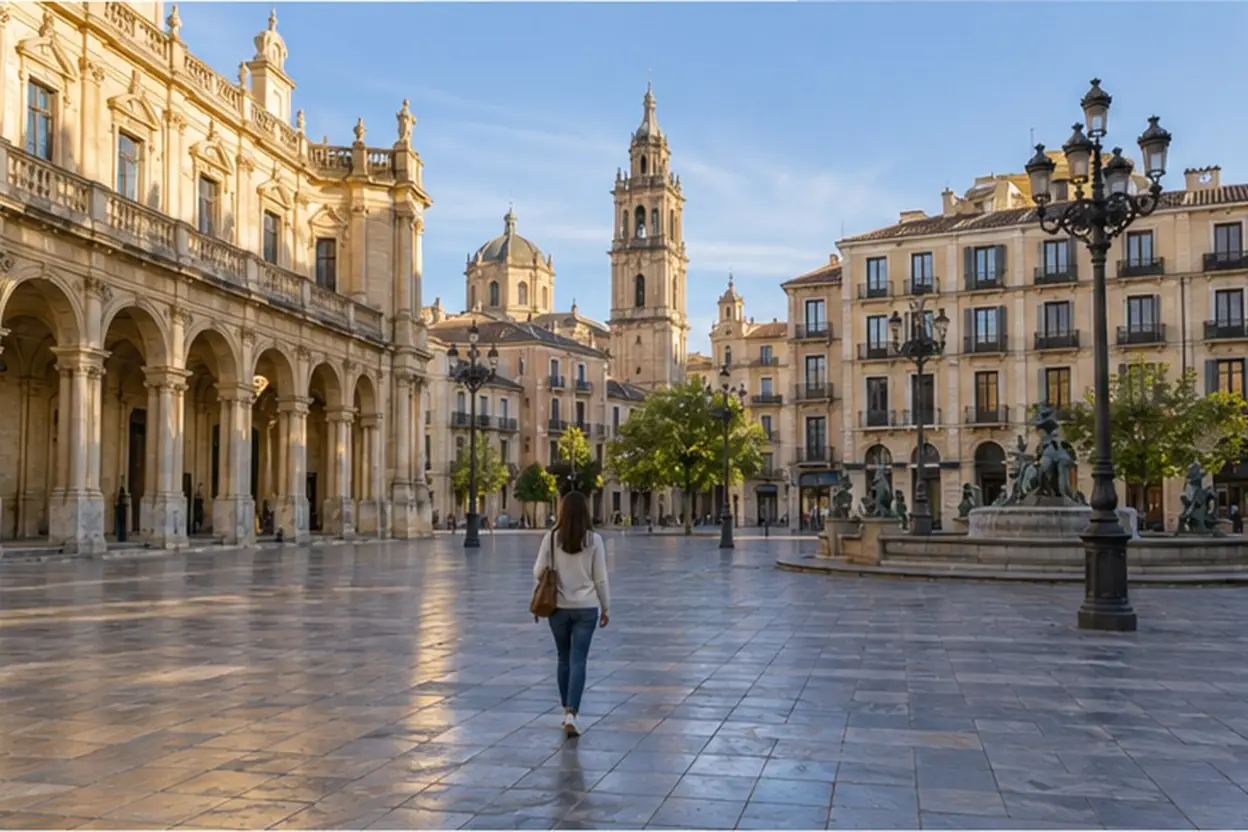
The open square remains after its central pedestrian is removed.
BeforeAfter

A pedestrian removed from a city square

The open square remains after its central pedestrian is removed.

View prompt

Remove the person in the center from the photo and fill the area so it matches the background.
How to Use an AI Person Remover

01

Upload one photo

Choose a JPG, PNG or WebP photo that you own or have permission to edit.

02

Identify one person

Describe their position or clothing, such as “the person in the red jacket on the left.”

03

Edit and review

Run the edit, inspect the filled area, and download the result if it works for your photo.

Tips for Removing One Person from a Photo

  1. Say where the person is.

    Use a location or clothing detail, such as “the man in the red jacket on the left.”

  2. Remove one person at a time.

    If you need to clear several people, describe one person in each edit and review each result.

  3. Tell the tool what to keep.

    Mention nearby people or scene details that should stay unchanged.

  4. Check crowded or covered areas.

    Large subjects and overlapping details can make the filled background look unnatural. Try a clearer description and review again.

Photo Limits and Responsible Use

Supported files

Upload one JPG, PNG or WebP photo at a time, up to 10 MB.

One photo per edit

The tool processes one photo in each edit; it does not edit a batch of photos.

Free edits

Visitors can make 3 free edits per day without signing up.

Failed edits

If an edit fails, its reserved credit is released.

One person at a time

The tested examples remove one identified person per edit. Removing a large group at once is not supported by these examples.

Filled background

The hidden area may not be reconstructed accurately, especially when the person covers important details.

Use photos with permission

Only edit your own photos or images you have permission to change.

Do not mislead people

Do not use an edited photo to fabricate an event or mislead someone about what happened.

Remove Person from Photo FAQ

Can I remove a person from a photo online for free?

You can make 3 free edits per day without signing up. Upload a photo, describe one person and review the result.

Can I use AI to remove a person from a photo without signing in?

The tool works without an account for up to 3 free edits per day.

How do I remove another person and keep the main subject?

Describe the person by location or clothing, then say what should stay. Check the result because details behind the person may not be reconstructed accurately.

Can I remove one person at a time from a photo?

The tested examples remove one identified person per edit.

Can I remove several people from the same photo?

The tested prompt removes one person at a time. For several people, run separate edits and review each result.

Can this person remover remove an object too?

For object removal, use the free AI image editor.

Try Removing One Person from Your Photo

Upload a photo you have permission to edit, describe one person, and check the filled area.

Choose a photo

Need to clear text added to a photo? Try Remove Text from Image.

For other edits, use the free AI image editor.